Changing solicitor details on a sales progression
Loop Guide · Sales Progression
You can change the buyer’s or seller’s solicitor on a sale at any point during sales progression. You might need to do this when a client switches firms, or when the wrong solicitor was chosen when the offer was accepted.
It takes about a minute and is done from the sale’s Sales Details tab.
Open the sale
- In the left-hand menu, click Sales Progression, then Active.
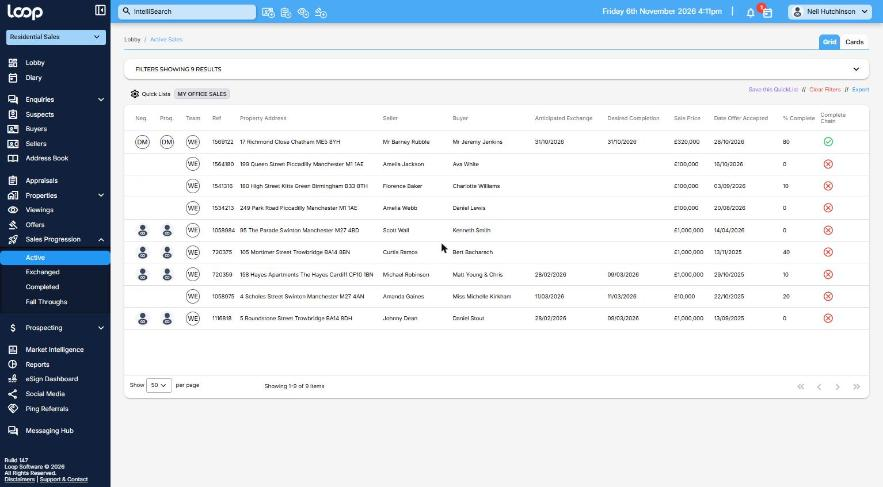
The Active Sales list
- Find the sale in the list. If you have a lot of sales, use the filters or Quick Lists at the top to narrow it down.
- Click the sale to open it. It opens on the Sales Details tab, with the Buyer and Seller panels side by side.
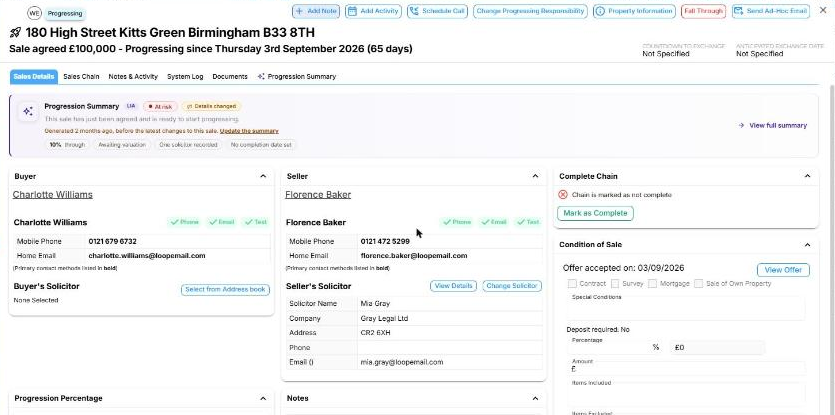
The Sales Details tab, showing the Buyer’s Solicitor and Seller’s Solicitor sections
Change the solicitor
- Go to the Seller’s Solicitor or Buyer’s Solicitor section, depending on which one you’re changing.
- If a solicitor is already set, click Change Solicitor.
- If it shows None Selected, click Select from Address book.
- The Choose Solicitor window opens, listing the solicitors in your address book by name and company. Start typing in the search box to narrow the list, then click the solicitor you want.
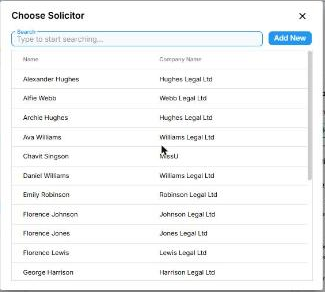
The Choose Solicitor window
- If the solicitor isn’t in the list, click Add New to add them to your address book.
- The Update Solicitor box appears. Tick where you want the new solicitor to be recorded, then click Confirm:
- Update solicitor on accepted offer
- Update solicitor on seller group, or Update solicitor on buyer group if you’re changing the buyer’s solicitor
In most cases, tick both so the solicitor’s details match everywhere.
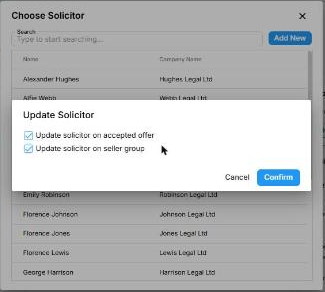
The Update Solicitor box with both options ticked
- The solicitor section now shows the new solicitor’s name, company, address and email. Click View Details to see their full contact details.
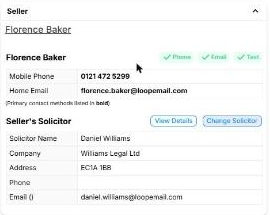
The Seller’s Solicitor section showing the new solicitor
Need help?
If anything doesn’t look right, contact Loop Support from the Support & Contact link at the bottom of the left-hand menu.
Was this article helpful?
That’s Great!
Thank you for your feedback
Sorry! We couldn't be helpful
Thank you for your feedback
Feedback sent
We appreciate your effort and will try to fix the article