Overview
Before anyone in your agency can post a property to social media from Loop, an account admin needs to connect your social accounts and decide which branches can use them. This is a one-off job and it usually takes a few minutes per platform.
You can connect Facebook Pages and Instagram. LinkedIn is not available yet.
What you need first
For Facebook. A Facebook Page for your agency, and an account that has permission to manage that Page. A personal profile on its own is not enough, because Loop posts to Pages rather than to profiles.
For Instagram. A professional Instagram account, which means either a business or a creator account, and that account needs to be linked to your Facebook Page. This is an Instagram requirement rather than a Loop one, and it is the step that catches most agencies out.
If your Instagram account is currently a personal one, or it is not linked to your Page yet, Meta's own help articles walk through both:
Set up a professional Instagram account, which covers turning a personal account into a business or creator account.
Connect your Instagram account to a Facebook Page, which covers linking the two together.
Do those first. Loop will tell you what is missing if you try to connect Instagram before it is ready, but it is quicker to sort it out up front.
How connecting and assigning work
There are two steps, and it helps to know why they are separate.
Connecting is where you give Loop permission to post on your behalf. You do it once for each real account. If your agency has one Facebook Page, you connect it once, no matter how many teams you have.
Assigning is where you say which teams can post through that account. A single Page can be assigned to every team, so the whole agency posts under one identity. Or each team can have its own Page assigned to it, so each one posts under its own name. Most agencies pick one of those two patterns, but you can mix them if your branches are set up differently.
Splitting it this way means you only go through the permission step once per account, and you can change which branches use it later without doing it all again.
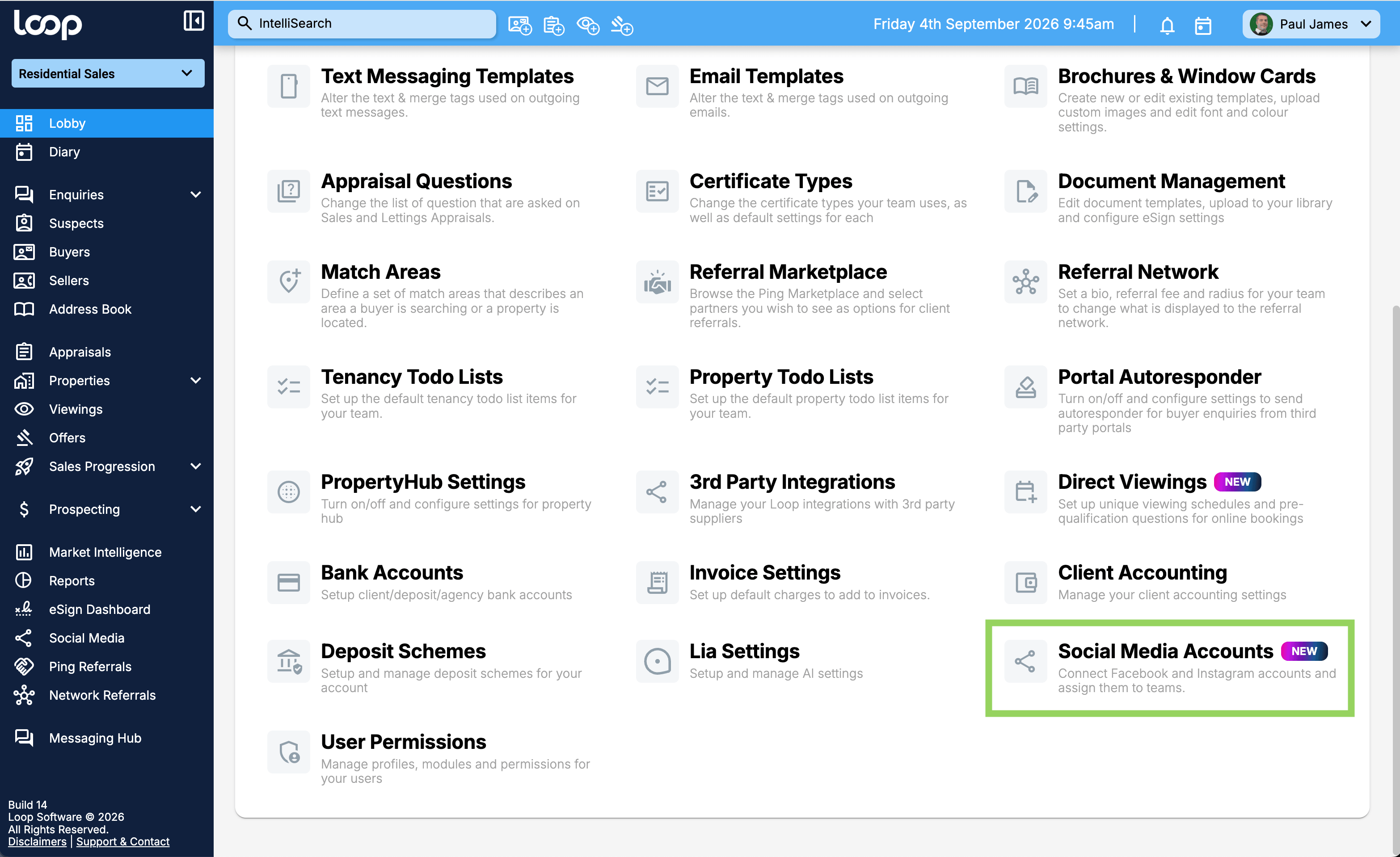
Connect an account
Go to Settings, then Social media.
Find the platform you want to connect and select Connect.
You will be taken to Facebook or Instagram to sign in and approve the permissions Loop asks for. Sign in with an account that manages the Page.
Choose the Page or account you want Loop to post to.
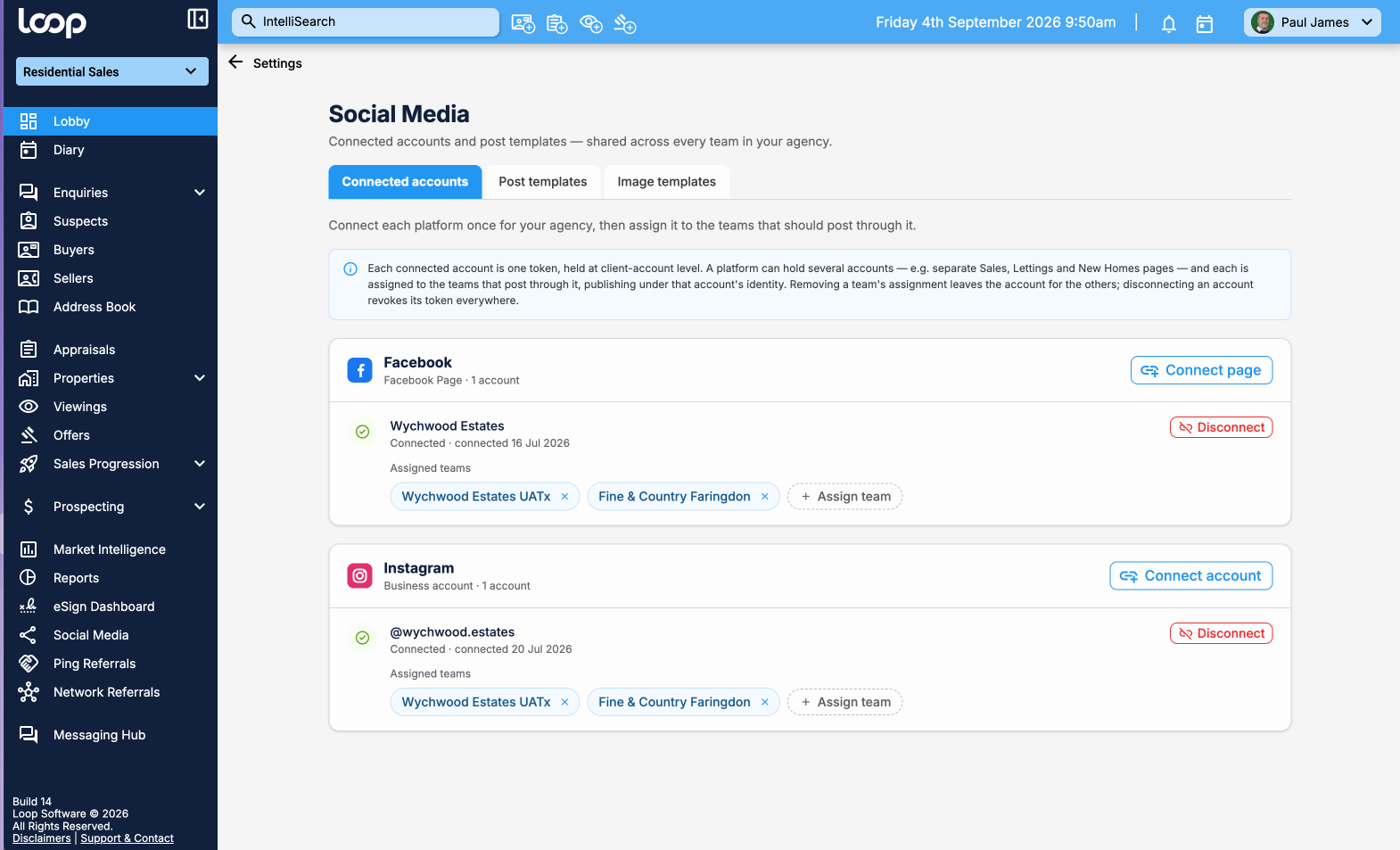
You come back to Loop and the account now appears in your list, with no branches assigned to it yet.
Repeat for each platform, and for each additional Page if your branches use different ones.
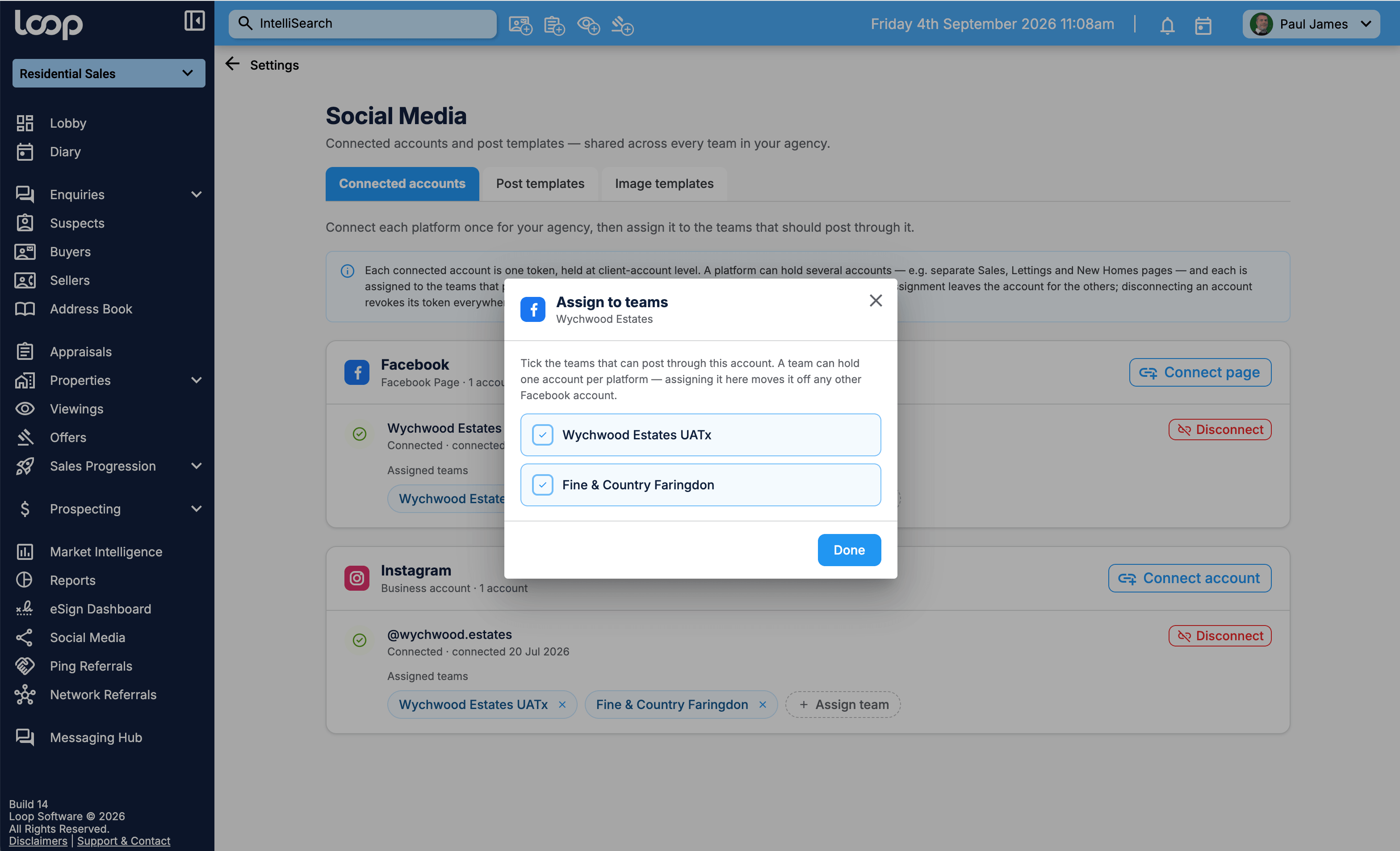
Assign an account to your teams
In Settings, then Social media, find the connected account.
Select Assign to team.
Choose the team, or teams, that should be able to post through this account.
A team can only use one account per platform. If a branch already has a Facebook Page assigned and you assign a second one, Loop will ask you to replace the first rather than letting both sit there, so that when someone picks Facebook in the composer there is no question about which Page it means.
Until a branch has an account assigned, that platform will not be selectable when its team try to post a property. If someone tells you Instagram is greyed out, an unassigned account is usually why.
Deciding between one account and several
There is no right answer here, and it comes down to how your agency already works.
One account for the whole agency keeps your following in one place and means one set of content to keep an eye on. Posts from every team go out under the same name.
An account per team suits agencies where each office has built its own local following, and where a property from the other side of the county landing on a local page would look odd to followers.
Separate accounts by department is the third option, for example a Sales page and a Lettings page, with each assigned to the teams that should post to it.
Whichever you choose, the branding on the image is always taken from the team that owns the property, not from the account it is posted to and not from whoever pressed the button. So if one Facebook Page is shared across three teams, a property owned by the Stow team still goes out with the Stow team's logo and colours on the image.
Removing an account or a team's access
There are two different things you can remove, and they do different jobs.
Removing a team's assignment, using the small cross on the team's label, stops that team posting through the account. Everything else stays as it is, other teams carry on as normal, and the connection itself is untouched.
Disconnecting the account removes it from Loop entirely. The permission is withdrawn at Facebook or Instagram, and every team that was assigned to it loses access at the same time.
So if one office is moving to its own page, remove that team's assignment. Only disconnect if you want Loop to stop posting to that account altogether.
Posts that have already gone out are not affected either way. They stay on the platform, and they stay in your history in Loop.
If something goes wrong
Instagram will not connect. Almost always the professional account or the Facebook Page link. Work through the two Meta articles above, then try again.
The account shows as expired. Social platforms expire the permission from time to time, particularly if a password changes or someone reviews the app permissions at their end. Reconnect the account from Settings, then Social Media, and any scheduled posts waiting to go out through it will pick up the new permission.
A team cannot select a platform. Check the account is assigned to that team. Connecting on its own is not enough.
Someone changed our Facebook Page permissions. If the person who connected the account loses their permission to manage the Page, Loop loses it too. Reconnect using an account that still manages the Page.
If you are stuck, get in touch with support and tell us which platform and which team, and we will take a look.
Was this article helpful?
That’s Great!
Thank you for your feedback
Sorry! We couldn't be helpful
Thank you for your feedback
Feedback sent
We appreciate your effort and will try to fix the article