When a property is added to Loop Software, its listing page may not automatically show a pin on the map. This guide walks through the full process of finding a property's precise latitude and longitude using Google, entering those coordinates into the property record, and pushing the update live to your website and property portals
- Identify the issue - Open the property and confirm the Map & Location tab has no pin.
- Find the coordinates - Search Google for the property's latitude and longitude.
- Enter & save - Paste the coordinates into the Latitude / Longitude fields and save.
- Update the portals - Confirm the prompt to push the change to your website & portals.
Before You Start
- You'll need the property's full address, exactly as it appears on the Property File.
- Make sure you have permission to edit the property record and push updates to portals.
- This process takes about a minute per property once you're familiar with it.
Tip: Coordinates only need to be set once per property — once saved, the map pin and portal listings will keep this position unless the property record is moved or removed.
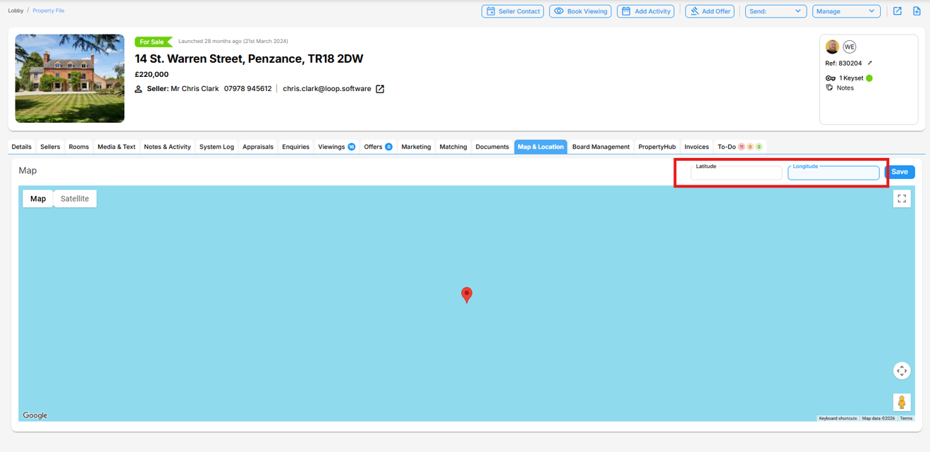
Find the Property Missing a Map Pin - Open the property record in Loop Software and go to the Map & Location tab. If the map shows as a plain blue/teal block with no pin, no address search box, and empty Latitude and Longitude fields (highlighted below), the property doesn't yet have a saved map position.
Tip: Make a note of the full property address shown at the top of the listing (e.g. "14 St. Warren Street, Penzance, TR18 2DW") — you'll need it for the next step.
Look Up the Latitude & Longitude in Google - Open a new browser tab and go to Google. Search using the property's full address together with the words "lat long", for example:
lat long 14 St. Warren Street, Penzance, TR18 2DW
Google's AI Overview (or the map result) will return the approximate geographic coordinates for the address, shown as a latitude and longitude pair, for example 50.123238° N and -5.537605° W.
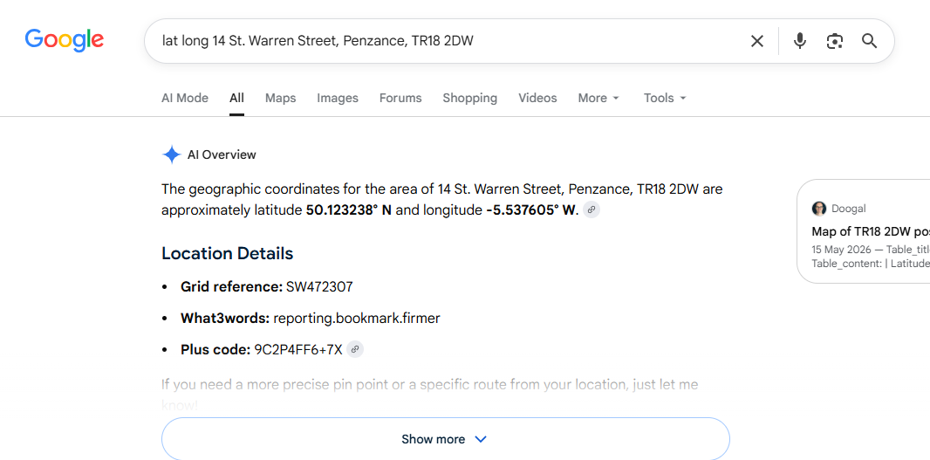
Tip: Note the numbers exactly as shown, including the minus sign on the longitude if present (west of the prime meridian is negative). You'll enter these as plain decimal numbers, without the ° or compass letters — e.g. 50.123238 and -5.537605.
Enter the Coordinates on the Map & Location Tab - Switch back to Loop Software and return to the property's Map & Location tab. Click into the Latitude field and enter the latitude value from Google, then click into the Longitude field and enter the longitude value. The map will update to drop a pin at the new position as soon as both fields are filled in.
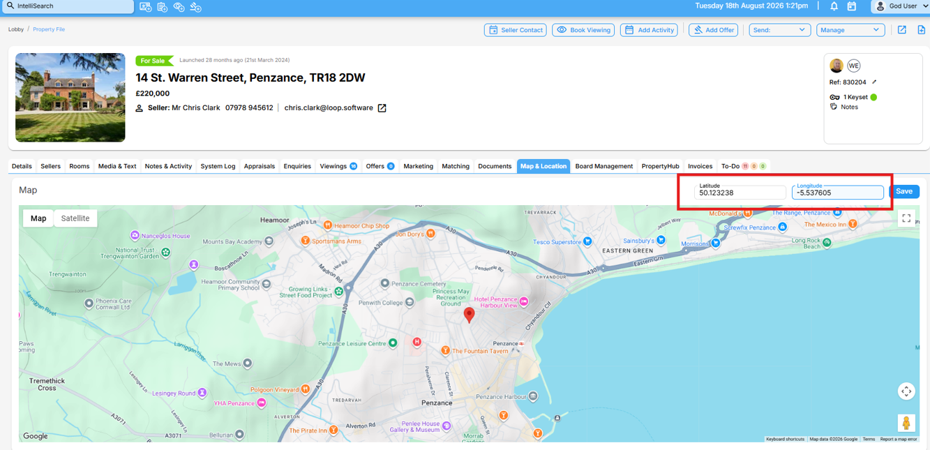
Tip: Double-check the two values against what you copied from Google, and confirm the pin has landed on the correct street before moving on.
Save and Update the Website & Portals - Once you're happy with the pin position, click the blue Save button in the top-right corner of the Map & Location panel.
Loop Software will then ask: "Update the property listing on your website & portals?". Click Yes to push the corrected map position out to your website and any connected property portals, so the listing shows the pin in the right place everywhere it's published.
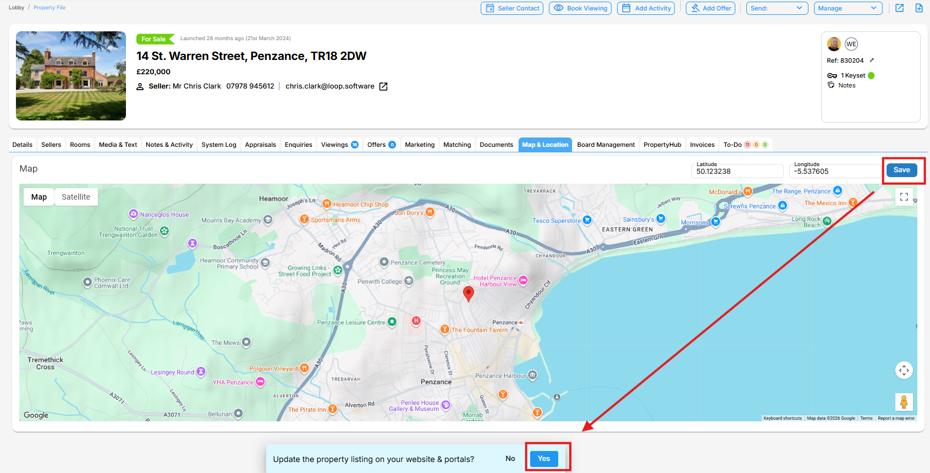
Tip: If you click No by mistake, simply click Save again and choose Yes when prompted — the coordinates are already stored against the property, so no work is lost.
Quick Recap
- Open the property's Map & Location tab and check for a missing pin.
- Search Google for "lat long [full property address]".
- Enter the returned Latitude and Longitude values into the matching fields.
- Click Save, then click Yes to update the website & portals.
That's it — the property will now display an accurate map pin on your website and across your connected portals.
Was this article helpful?
That’s Great!
Thank you for your feedback
Sorry! We couldn't be helpful
Thank you for your feedback
Feedback sent
We appreciate your effort and will try to fix the article