What is this button?
This is a high-compatibility CTA (Call to Action) designed specifically for HTML emails. Rather than sending a client to a website contact form, this button launches a new email conversation pre-addressed to your team instantly.
Why this specific code?
Most email buttons "break" in Microsoft Outlook because it uses an older rendering system. This code uses VML (Vector Markup Language) - a special set of instructions that tells Outlook to draw the button shape correctly, ensuring your branding stays intact whether the client is using a smartphone or an office PC.
The Code Snippet
Copy and paste this into the HTML or Code View of your email editor:
HTML
<table border="0" cellpadding="0" cellspacing="0" style="margin-top: 15px; margin-bottom: 15px;">
<tbody>
<tr>
<td align="left">
<table border="0" cellpadding="0" cellspacing="0">
<tbody>
<tr>
<td align="center" bgcolor="#6b1832" style="border-radius: 5px;">
<a href="mailto:support@loop.software?cc=chris.clark@loop.software&subject=AddSubjectHere&body=AddContentHere" style="font-size: 16px; font-family: Helvetica, Arial, sans-serif; color: #ffffff; text-decoration: none; border-radius: 5px; padding: 15px 25px; border: 1px solid #6b1832; display: inline-block; font-weight: bold;" target="_blank">CLICK TO EMAIL</a>
</td>
</tr>
</tbody>
</table>
</td>
</tr>
</tbody>
</table>
How to customise and use it:
Update the Recipients: Because of the Outlook fix, the email link appears twice. You must update both for the button to work for everyone:
Inside the standard <a> tag replace the support@loop.software with the relevant email. similar for the cc.
Pre-fill Subject & Content: * Locate subject=AddSubjectHere and body=AddContentHere.
Tip: Use %20 for spaces (e.g., subject=New%20Instruction).
Branding (Colors):
To change the color, update the Hex code in three places: bgcolor, font, and border.
Deploying in your CRM:
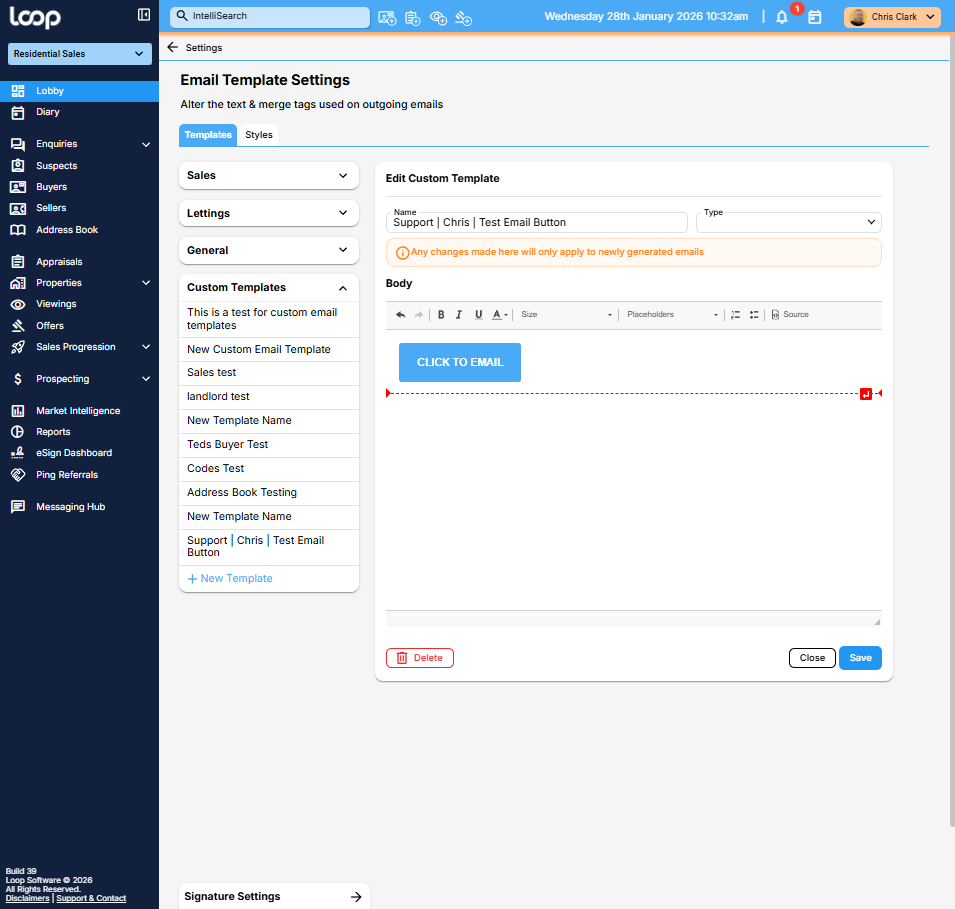
Open the email templates within Loop: https://app.loop.software/settings/email-templates.
Switch to HTML mode (click Source).
Paste the code into your desired position.
Save.
This is how it should then look:
 If you have any issues with this please reach out.
Was this article helpful?
That’s Great!
Thank you for your feedback
Sorry! We couldn't be helpful
Thank you for your feedback
Feedback sent
We appreciate your effort and will try to fix the article