You can sync your Microsoft Office 365 emails with Loop by following these steps:
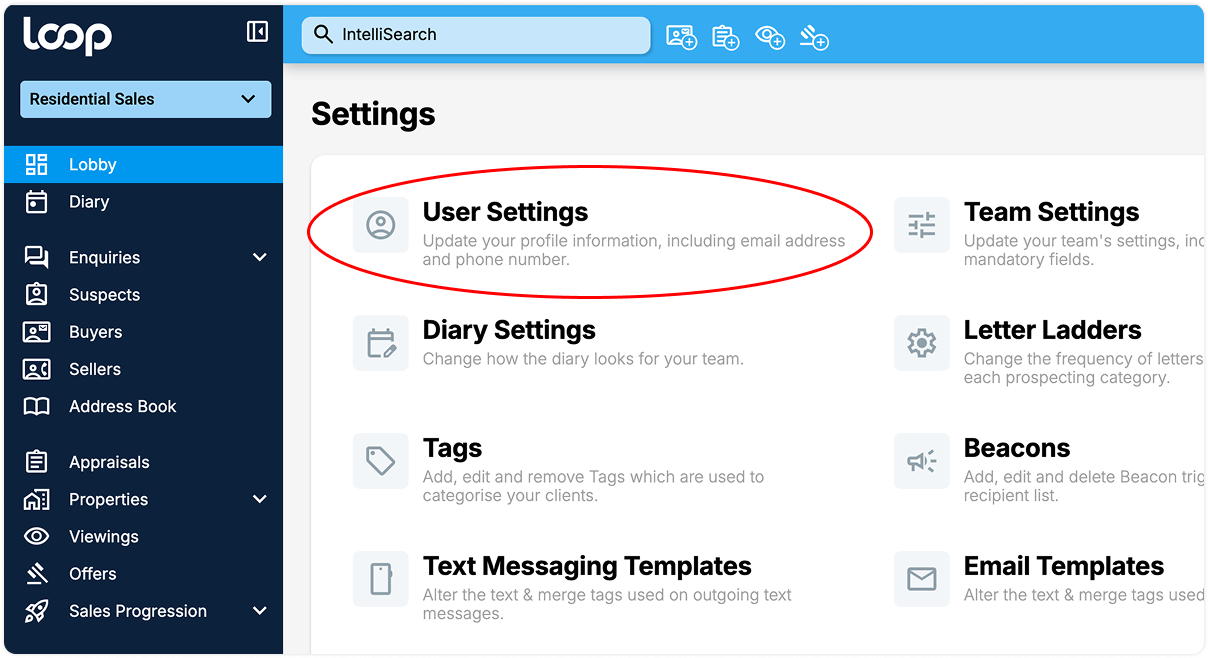
Go to your Settings which can be accessed via the Avatar icon in the top right hand corner of Loop, and then click the User Settings option:
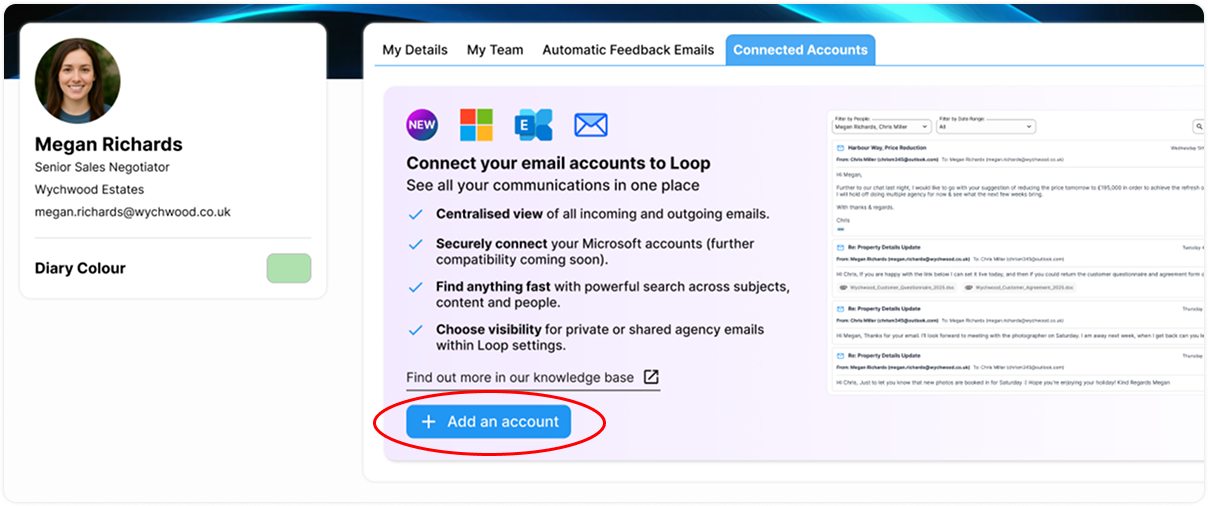
Locate the 'Connected accounts' tab and click 'Add New Account':
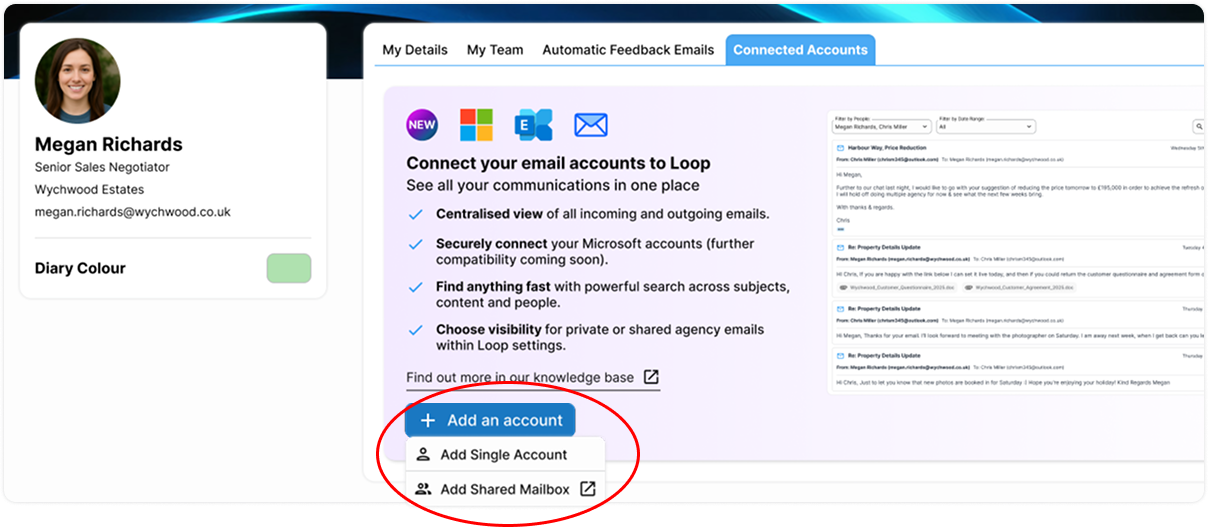
Click ‘Add Single Account’
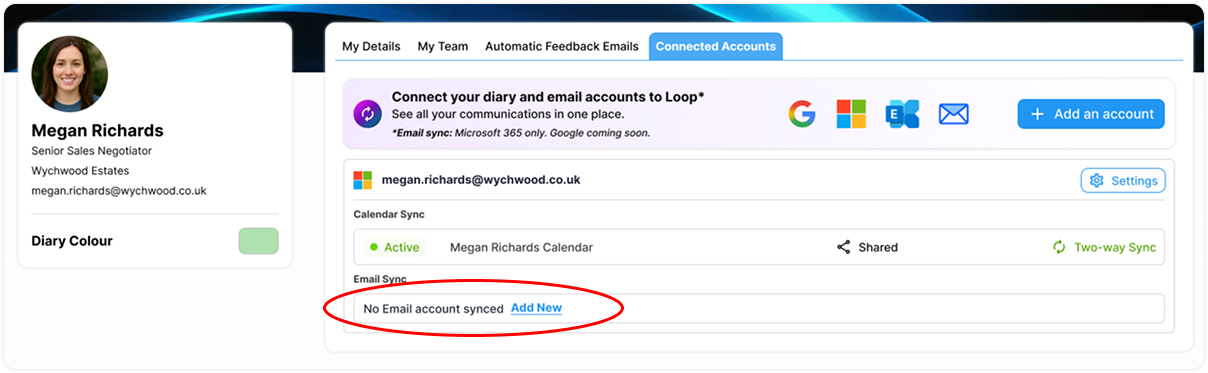
Alternatively, if you have previously set up Two-Way Diary Sync, you can add Email Sync for the same account by clicking ‘Add New’:
Select ‘Emails to Notes & Activity’ and select the visibility of emails to other members of the team.
Shared - Emails between the synced mailbox and relevant parties on a record will be shown to other members of the team
Private - Emails will only be visible to the agent that syncs the account

Click ‘Save’ and you'll now get directed through the Nylas authentication, the third-party that hooks up the sync. Email Sync is currently only supported for Microsoft accounts, but Google integration is coming soon.
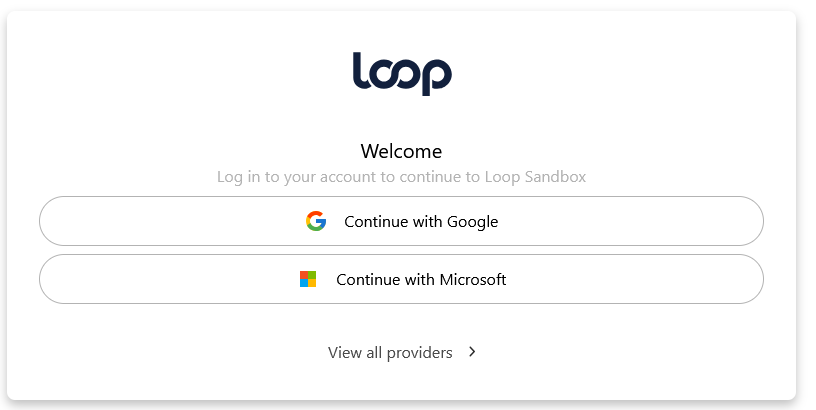
Select the account type and enter your email address, press sign in and follow the login steps:
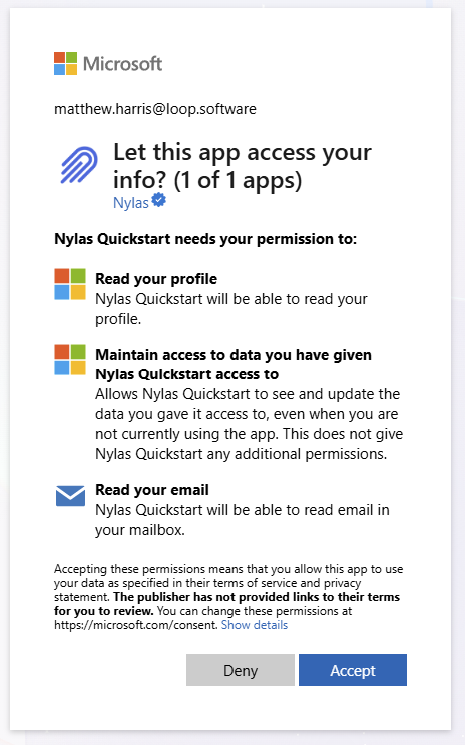
Press the 'Accept' button to grant Nylas access:
You'll now be re-directed back to Loop.
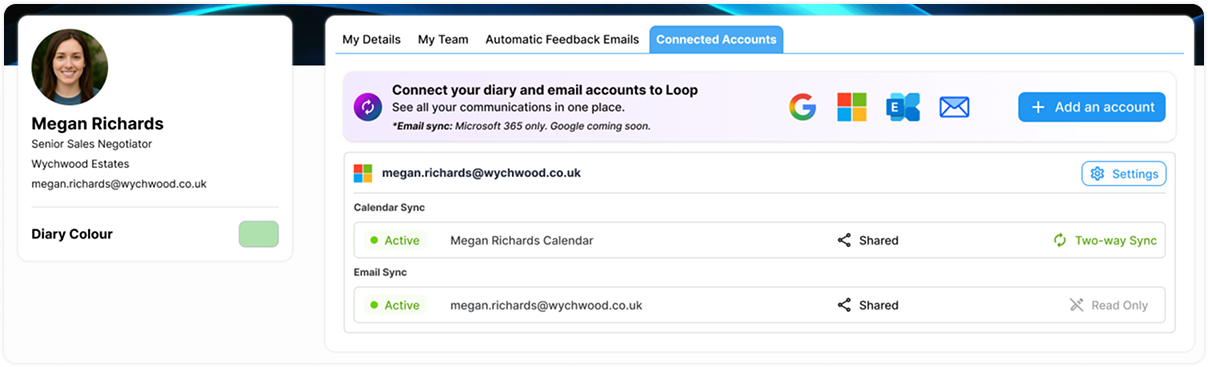
For Office 365 accounts, you also need to add Loop as a trusted application.
There are instructions here on how to give the relevant access here - https://learn.microsoft.com/en-gb/azure/active-directory/manage-apps/configure-user-consent?pivots=portal#risk-based-step-up-consent
On point 3 of the above article, please make sure to check the final tickbox (i.e. 'Allow user consent for apps').
Viewing Emails In Loop
You can view emails in Loop on any type of record which has a Notes & Activity tab, for example on a property record:
Go to the property record and to the Notes & Activity tab
Select ‘Emails’ on the left
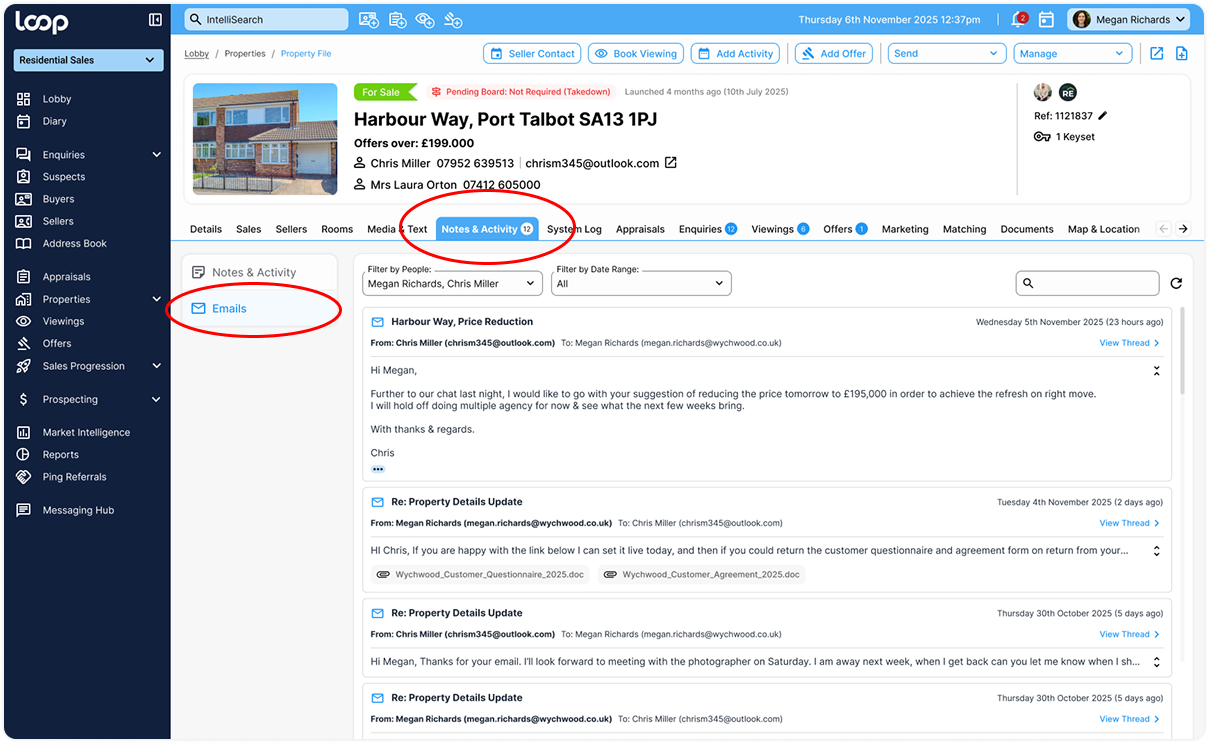
By default you will see a list of any emails sent or received by any of the agents on your team who have synced their accounts, to or from the relevant people on the record (for example any Sellers and Solicitors).
By checking and unchecking people or agents in the ‘Filter by People’ dropdown, you can filter the results that are shown. Date filters and search are also available
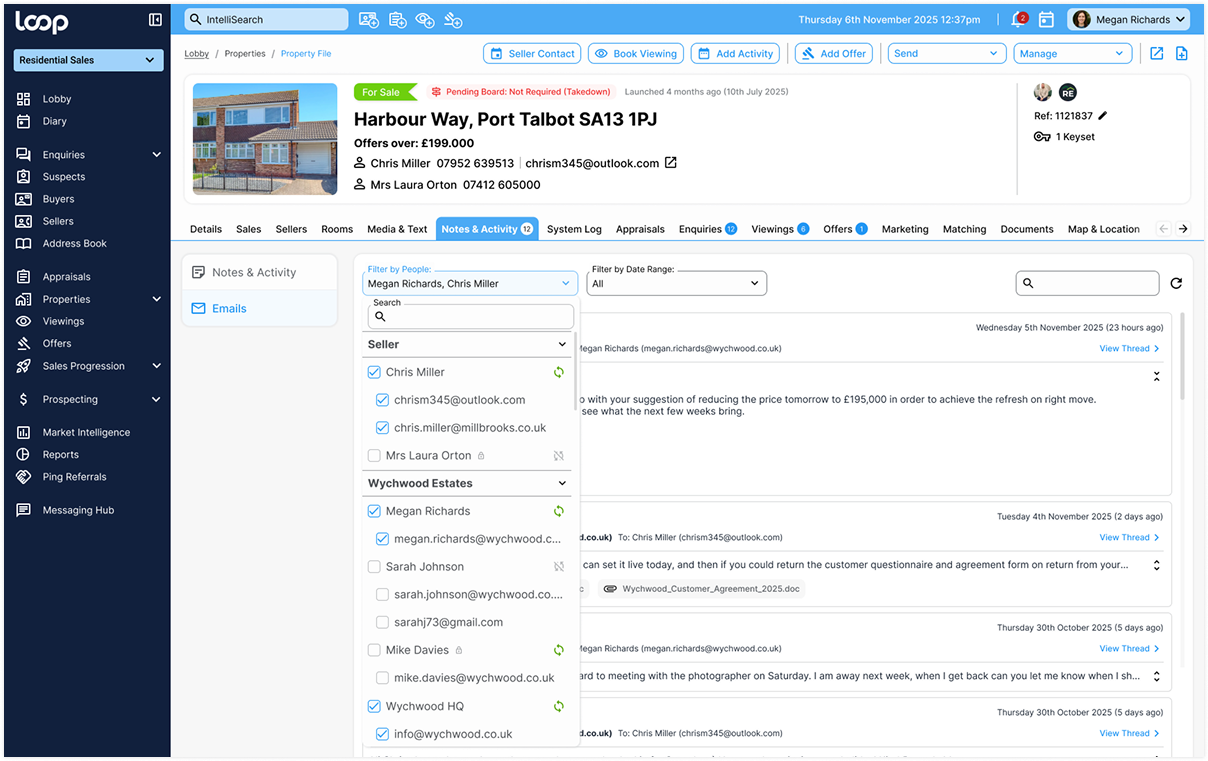
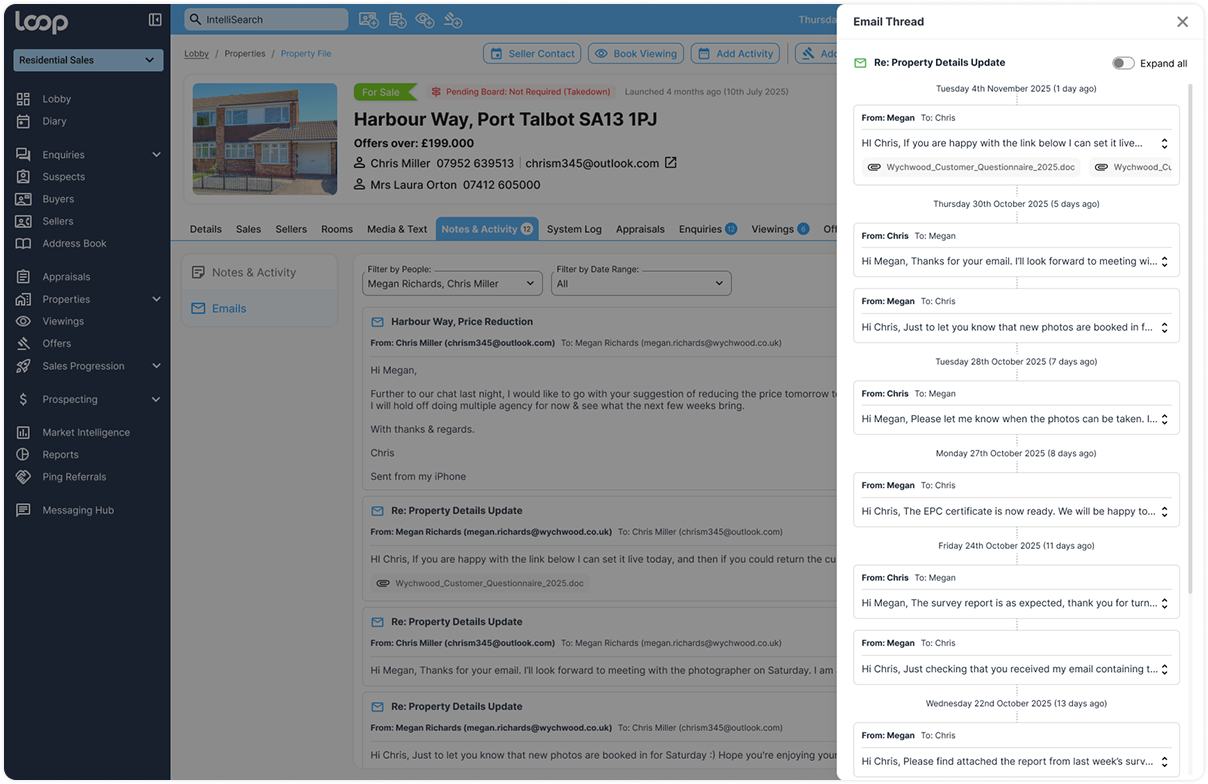
Clicking the ‘View Thread’ button enables you to view just the messages on a single thread.
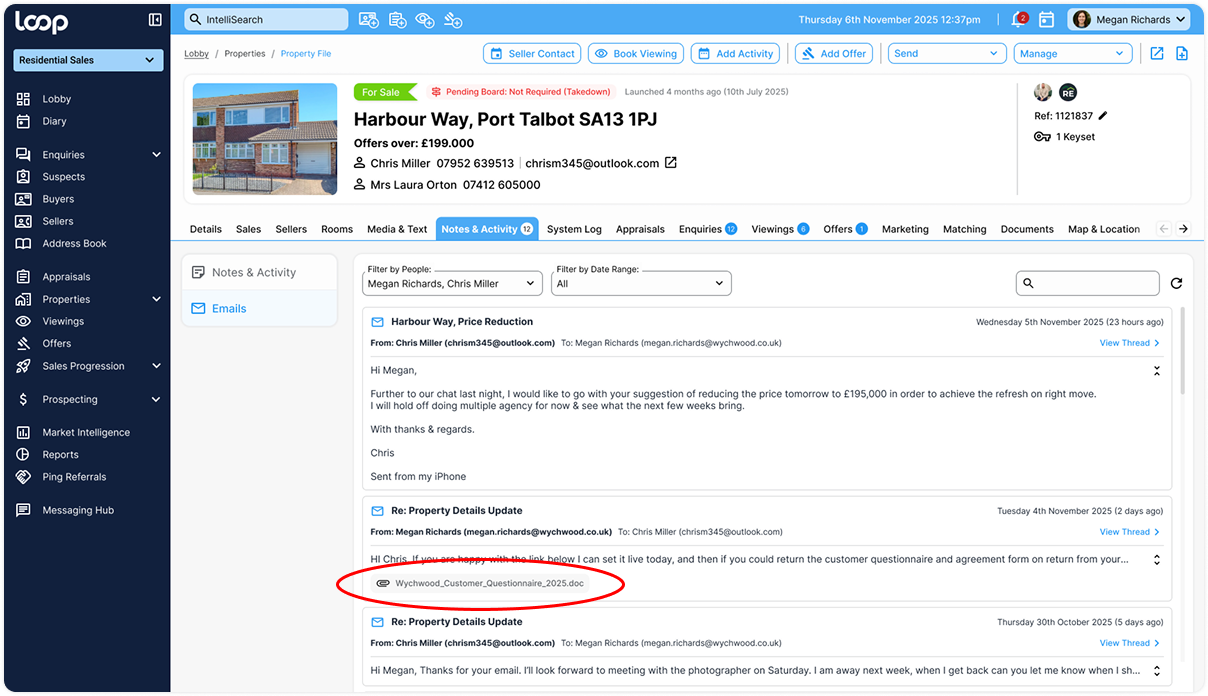
Email attachments can be downloaded by clicking on them:
Was this article helpful?
That’s Great!
Thank you for your feedback
Sorry! We couldn't be helpful
Thank you for your feedback
Feedback sent
We appreciate your effort and will try to fix the article