Connecting Your eXp Zoho Mail Account to Loop
This guide is for eXp agents using a Zoho-hosted email address (expuk.com) who want their calendar and/oremail to sync with Loop.
Because Zoho isn't one of Loop's direct sign-in options, you'll need two things ready from Zoho before you connect your account in Loop: IMAP access switched on, and an app-specific password.
Part 1: Prepare your Zoho Mail account
Step 1: Turn on IMAP access
- Log into Okta (exprealty.okta.com) and open the Zoho Mail tile.
- Go to Mail, then Settings (gear icon) > Mail Accounts > IMAP.
- Tick IMAP Access and Auto-Expunge Emails. Tick Include Archived Emails too if you'd like archived messages to sync.
- Click Save.
Step 2: Create an app-specific password
Loop can't use your normal Okta login for Zoho, so you'll need a separate password just for this connection.
- Click your profile icon (top right of Zoho Mail) and select My Account.
- Verify your identity via the SAML/Okta prompt if you're asked to.
- Go to Security > App Password > Generate New Password.
- Name it "Loop" and click Generate.
- Copy the password straight away and keep it somewhere safe — once you close this window, you won't be able to view it again. If you do lose it, just delete the entry and generate a new one.
Part 2: Connect your account in Loop
- In Loop, click your avatar icon (top right) and go to Settings > User Settings.
- Open the Connected Accounts tab and click Add Account.
- Choose your sync preferences - Calendar Sync and/or Emails to Notes and Activity - and, if syncing email, whether it should be shared with everybody or private to you.
- Since Zoho isn't a Google or Microsoft account, choose "View all providers" and then select IMAP and the IMAP option rather than signing in with a provider.
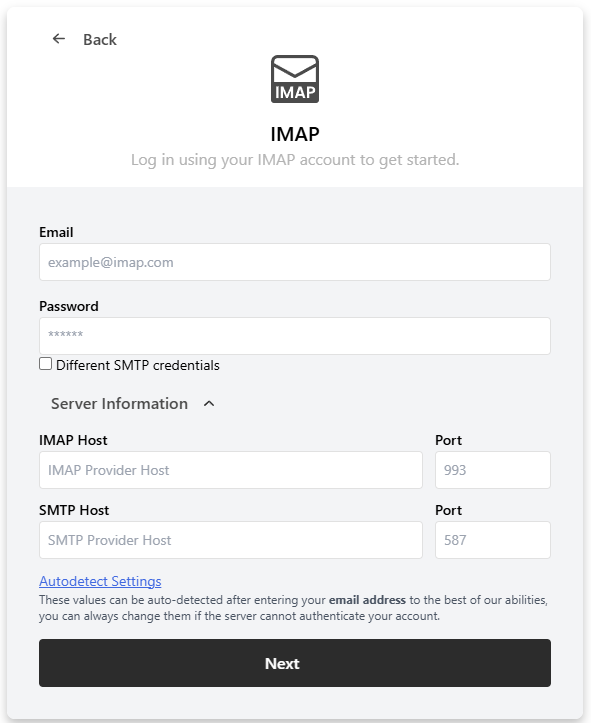
- Enter the following:
- Email address: your full expuk.com address
- Password: the app-specific password from Part 1 (not your normal Zoho or Okta password)
- IMAP (incoming): imappro.zoho.eu, port 993
- SMTP (outgoing): smtppro.zoho.eu, port 465
- Click Save.
What happens next
The sync can take up to 24 hours to fully activate, so don't worry if nothing appears in Loop straight away.
If the connection fails or nothing syncs after 24 hours, double-check that:
- IMAP access is switched on in Zoho Mail (Part 1, Step 1)
- You're using the app-specific password, not your normal Zoho or Okta password
Was this article helpful?
That’s Great!
Thank you for your feedback
Sorry! We couldn't be helpful
Thank you for your feedback
Feedback sent
We appreciate your effort and will try to fix the article