A step-by-step guide for the eSign Dashboard in Loop Software
This guide walks through how to cancel an outstanding e-signature request (envelope) from the eSign Dashboard in Loop Software, using the Cancel Envelope option found in the document's Pack Details panel.
Step 1: Open the eSign Dashboard
In the left-hand navigation menu, click eSign Dashboard. This opens a dashboard listing every signature request sent from your account, along with its status, recipients, and elapsed time.
Step 2: Locate the document you want to cancel
Use the table on the dashboard to find the relevant envelope. You can narrow the list with the Advanced Filters panel (by agent, team, area, date range, or signing status), or use the Search box. Documents that are still awaiting a signature will show a Sent status and are the ones eligible for cancellation.
Step 3: Click "More" on that document's row
In the Actions column at the far right of the row, click the More button. This opens the Pack Details
panel for that document.
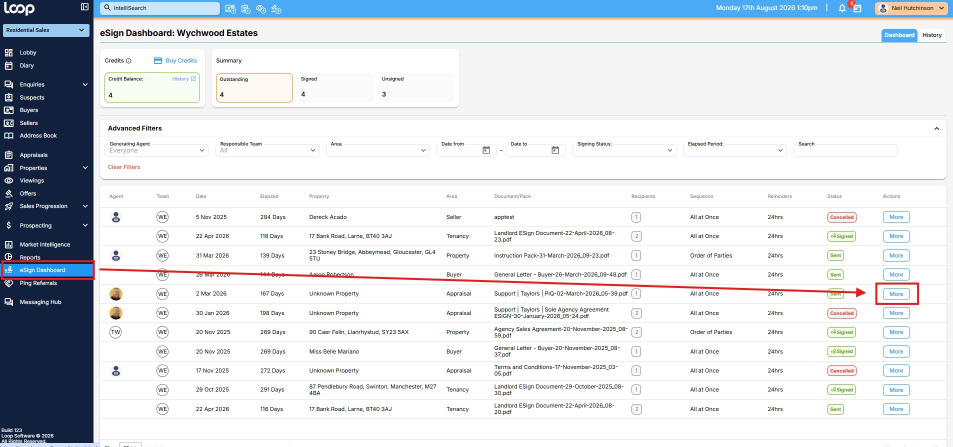
The eSign Dashboard. Locate your document's row and click More in the Actions column (highlighted) to open its Pack Details panel.
Step 4: Click "Cancel Envelope"
The Pack Details panel opens on the right-hand side of the screen, showing the document name, eSign status, and recipient(s). At the bottom of the panel, click the red Cancel Envelope button.
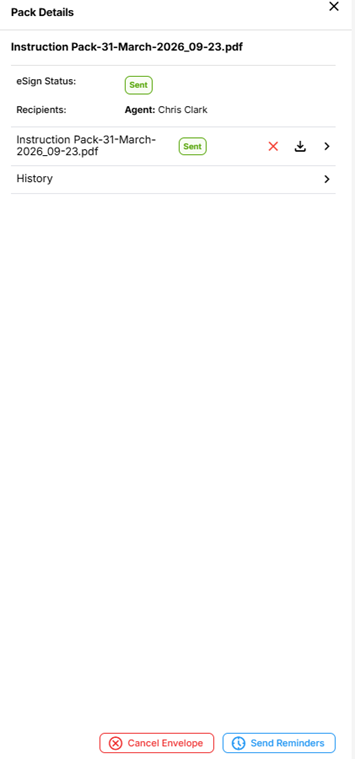
The Pack Details panel, showing the Cancel Envelope button at the bottom left.
Step 5: Confirm the cancellation
Once confirmed, the document's eSign status updates to Cancelled on the dashboard, and the recipient(s) will no longer be able to sign it.
Things to Know
- Once cancelled, a signature request cannot be resumed — if you still need the document signed, you'll need to send a new envelope.
- The Send Reminders button next to Cancel Envelope can be used instead if you just want to nudge a recipient rather than cancel the request.
- If the Pack Details panel doesn't show a Cancel Envelope option, the document may already be fully signed or already cancelled — check the Status column on the dashboard first.
- Cancelling an envelope does not use up or refund your signature credits. Check your Credit Balance at the top of the eSign Dashboard if you're unsure how many you have.
Was this article helpful?
That’s Great!
Thank you for your feedback
Sorry! We couldn't be helpful
Thank you for your feedback
Feedback sent
We appreciate your effort and will try to fix the article