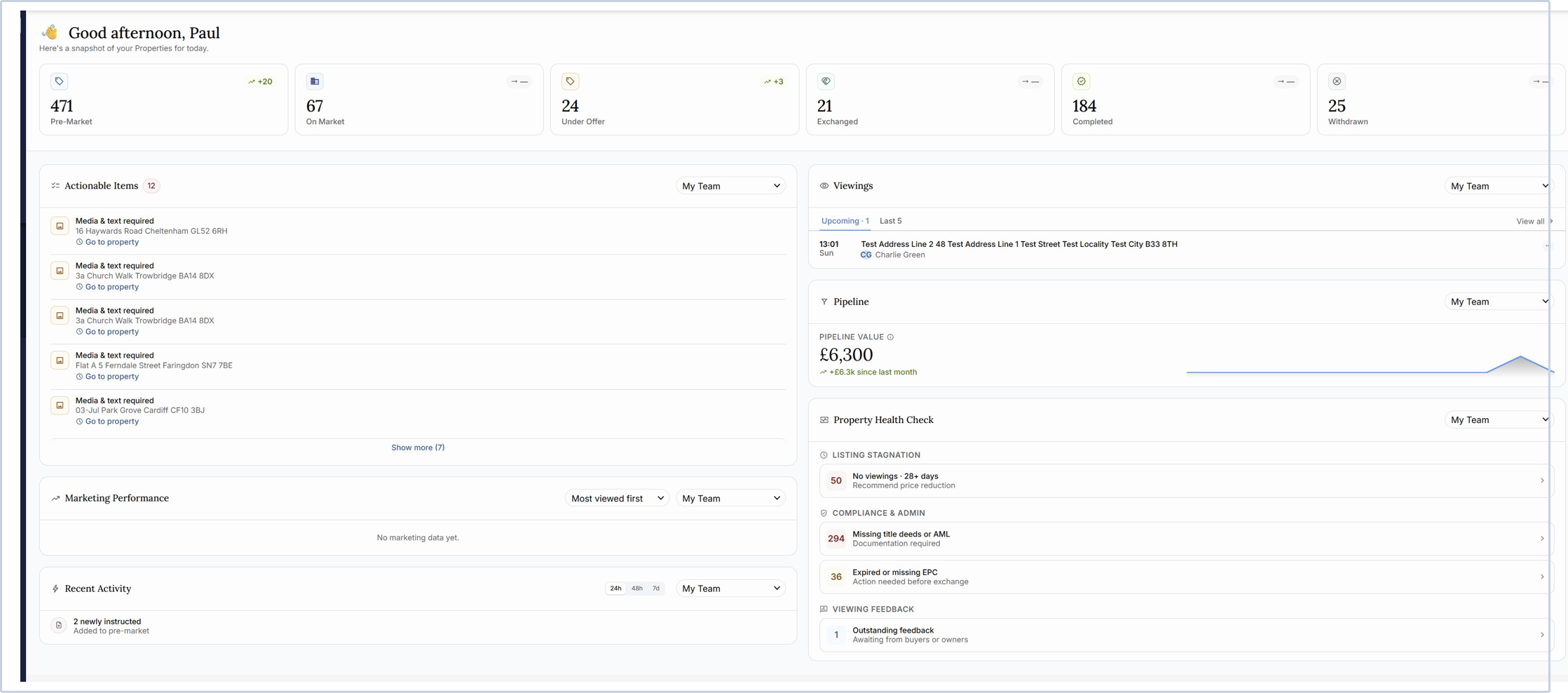
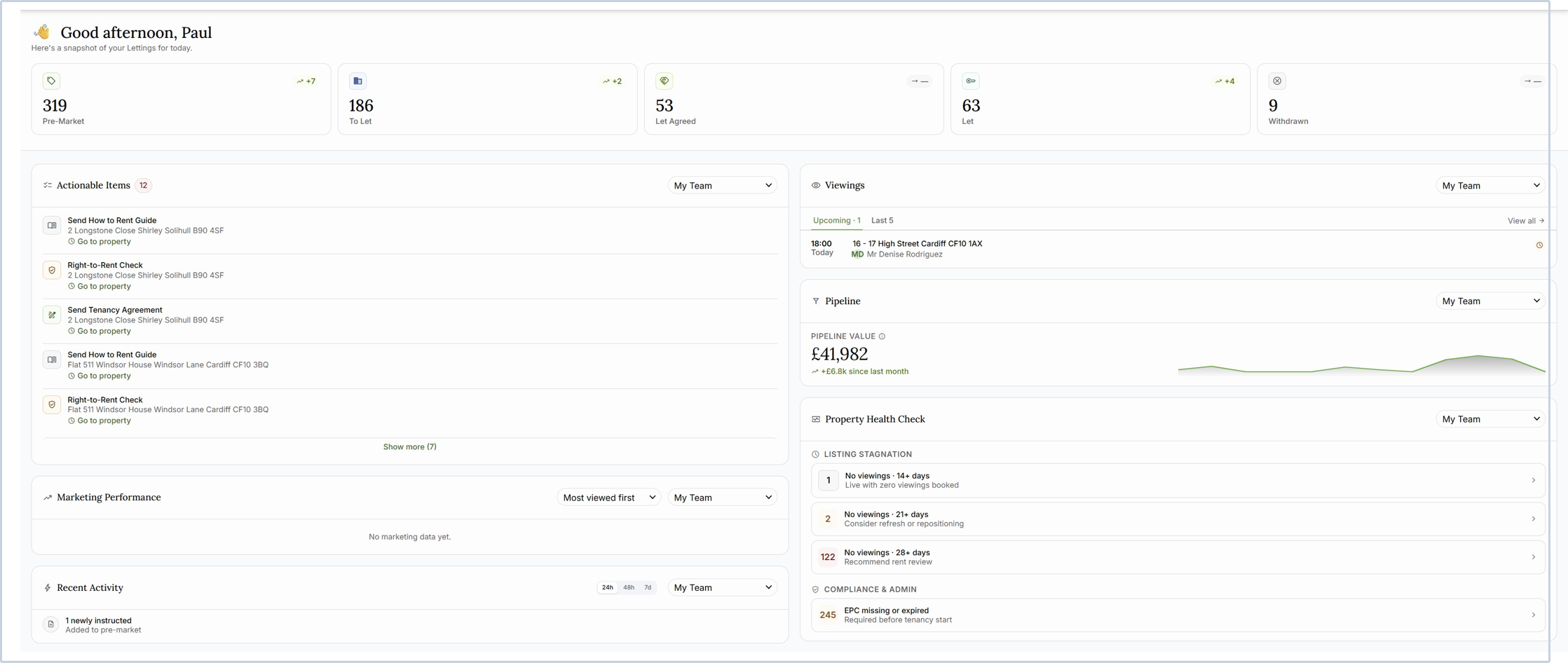
The Residential Properties Dashboard gives you a single screen for everything on your desk — where each property stands, what needs doing, viewings, your pipeline, and how your marketing is performing. It works the same way for Sales and Lettings, with the wording changed to suit each. The two views are shown below, and the rest of this guide walks through every part in turn.
Finding the dashboard
The dashboard lives in your Sales and Lettings areas. It opens showing your own properties; you can widen any part of it to a colleague or the whole office at any time (see “Filtering by agent or team”). It refreshes as you work, so the figures stay current.
The status row
The row of cards along the top gives you a headcount of where every property sits. There is one card per stage.
- Sales stages: Pre-Market (being prepared, not yet advertised), On Market (live), Under Offer (offer accepted, progressing), Exchanged (contracts exchanged), Completed (sale done) and Withdrawn (taken off the market).
- Lettings stages: Pre-Market, To Let (live), Let Agreed (holding deposit / referencing stage), Let (tenanted) and Withdrawn.
- The large number is how many properties are at that stage right now, across whoever you've filtered to.
- The small figure with an arrow (top-right of each card) is how many arrived in that stage in the last seven days. A flat dash means no change in the week.
- Click any card to open the full property list for that stage — the list always matches the number on the card.
Actionable Items
A running to-do list of everything that needs a hand, newest or most urgent first. The number beside the title is how many items are outstanding.
- Each row is one job, with the property address beneath it.
- Sales examples: a seller contact call due, “Media & text required” (missing photos, floor plan or description), “Marketing price not set”, “Review new offer”, and mark-up-&-measure appointments.
- Lettings examples: “Send Tenancy Agreement”, “Send How to Rent Guide”, “Right-to-Rent Check”, “Request Holding Deposit” and “New Application Received”.
- Time-sensitive items show when they're due; the rest are quick links.
- If there are more than five, “Show more” reveals the full list and “Show less” collapses it again.
- Click an item (or “Go to property”) to open that property and deal with it.
Viewings
Keeps your viewings in view without leaving the dashboard.
- Two tabs: Upcoming and Last 5 (recently carried out).
- Each row shows the time and day, the property address, the buyer or renter, and the attending agent.
- Small markers show whether each side and the agent have confirmed, and whether feedback is in — buyer and seller for Sales, renter and landlord for Lettings.
- “View all” opens the full viewings list; click a single viewing to open its record.
Pipeline
Your pipeline value at a glance, with a twelve-month trend line beside it.
- Sales: the total commission from accepted offers on properties currently under offer (commission being a percentage of the agreed price, or a flat fee).
- Lettings: the total monthly rent across your let properties, with rents on other payment frequencies converted to a monthly figure.
- The figure beneath the total is what's been added in the last 30 days (green up, red down).
- The small “i” explains how the figure is worked out.
Property Health
Flags anything slipping so you can catch it early. Issues are grouped; categories with nothing in them are hidden, and when there's nothing to flag you'll see “All clear”.
- Listing Stagnation: live properties with no viewings for 14+, 21+ or 28+ days, each with a suggested next step (refresh or reposition the listing, review the price or rent).
- Compliance & Admin: for Sales, missing title deeds or AML documentation; for Lettings, gas safety expiring, EPC missing or expired, and right-to-rent re-checks due.
- Viewing Feedback: viewings carried out in the last 14 days that are still missing one side's feedback.
- Each row shows a count and the issue. Click a row to see exactly which properties are affected.
Marketing Performance
Ranks your properties by how much attention they're getting on the portals, so you can see what's working and what needs a push.
- Ranked by detailed listing views over the last seven days.
- Columns show the property (with its rank), the number of views, and the change versus the previous week (up or down).
- Use the sort control to switch between “Most viewed first” and “Least viewed first”.
- If there are no figures yet, you'll see “No marketing data yet”.
Recent Activity
A short feed of what's changed lately, so you can pick up where things moved.
- Covers new instructions, properties moving to Under Offer or Let Agreed, exchanges, completions and lets, withdrawals, and deals that have fallen through.
- Use the 24h / 48h / 7d buttons to change the period.
- Related changes are grouped together (for example, “2 newly instructed”).
Filtering by agent or team
Every section has its own filter at the top right, set to your team by default (shown as “My Team” or “Anyone”).
- Open it to choose yourself, a colleague, several people, or whole teams. Each section is independent — you can, for example, watch your own viewings while checking the office's pipeline.
- The filter button shows who's selected: a name, “First name +N more”, a team name, “All teams”, or “Anyone” when nothing is chosen.
Drilling into the detail
The dashboard is a starting point — almost every figure is a link through to the detail.
- Status cards open the property list for that stage; Property Health rows open the affected properties; Recent Activity opens the properties involved.
- A drilldown opens a grid of property cards — click any card to open the full property file and work on it.
- Closing a drilldown (or pressing Escape) brings you back to the dashboard where you left off.
Was this article helpful?
That’s Great!
Thank you for your feedback
Sorry! We couldn't be helpful
Thank you for your feedback
Feedback sent
We appreciate your effort and will try to fix the article