1. Open the Viewing
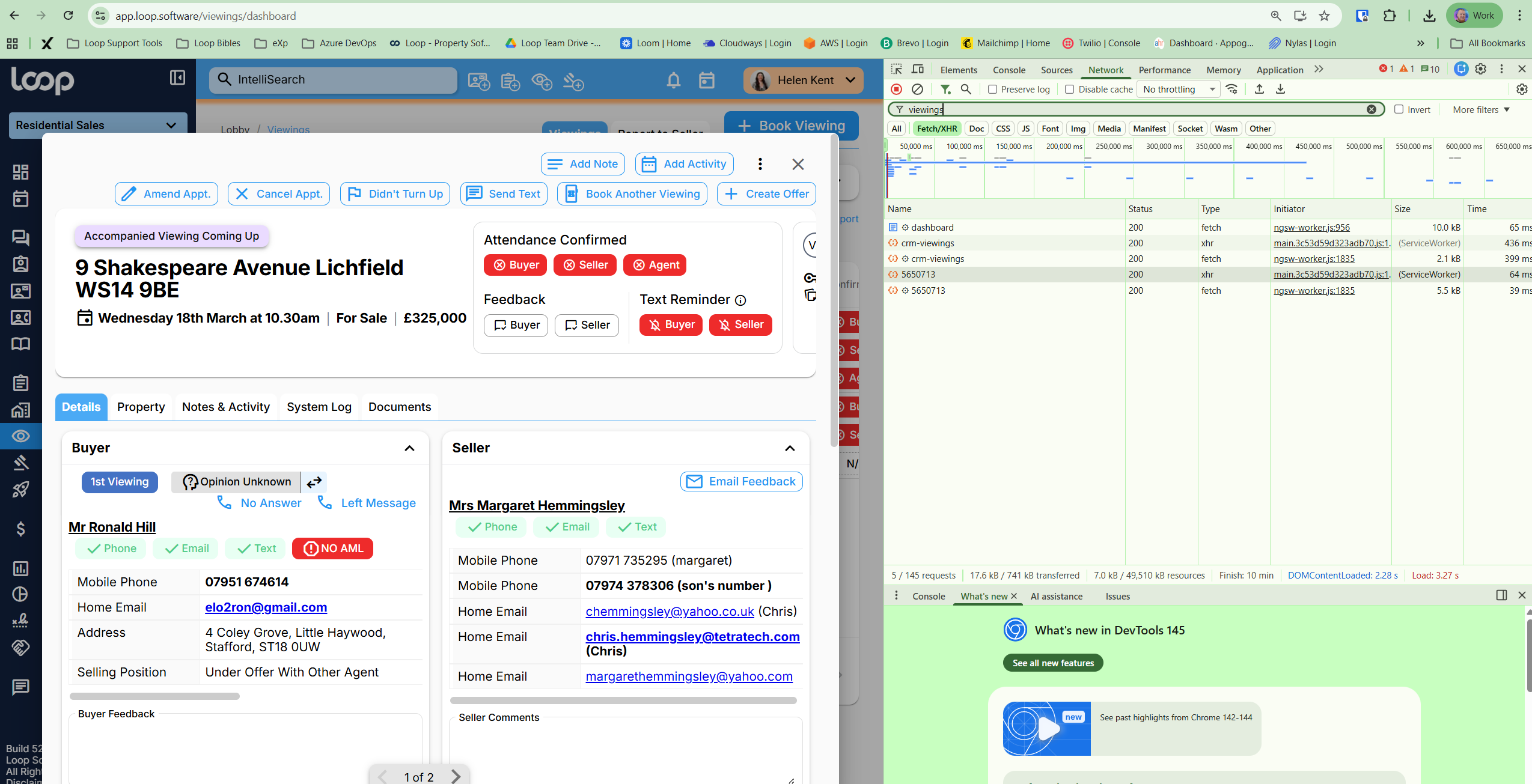
Open the specific viewing record you need to identify in the Loop platform (the pop-up window showing property and contact details).
2. Open Chrome DevTools
Right-click anywhere on the page and select Inspect.
Shortcut: Press F12 (or
Ctrl + Shift + Ion Windows /Cmd + Option + Ion Mac).
3. Navigate to the Network Tab
Click the Network tab at the top of the DevTools panel.
Note: If the list is empty, refresh the page (F5) while this tab is open to "record" the activity.
If you refresh you will need to open the viewing.
4. Filter for "viewings"
Click the Fetch/XHR sub-tab to hide images and styling.
In the Filter box (top left), type:
viewings
5. Identify the Request & ID
Look for a row in the Name column that is a standalone number.
Click that row and ensure the Headers tab is selected on the right.
The ID is the final set of digits at the very end of the Request URL.
Example Link:
https://loop-live-main-api.azurewebsites.net/api/crm-viewings/5650713 (In this case, the ID is 5650713)
Was this article helpful?
That’s Great!
Thank you for your feedback
Sorry! We couldn't be helpful
Thank you for your feedback
Feedback sent
We appreciate your effort and will try to fix the article